

Lab 01 : Installation de Terraform
Objectifs
Section intitulée « Objectifs »Dans cet atelier vous allez installer Terraform dans votre environnement (poste de travail ou VM dans le Cloud Outscale).
Environnement
Section intitulée « Environnement »Le système sur lequel vous installez Terraform et stockez les modules Terraform peut être on-premise ou dans le cloud. Il s’agit de votre système local ou de votre hôte local.
Installation de Terraform
Section intitulée « Installation de Terraform »Installation manuelle de la dernière version de Terraform (binaires pré-compilés)
Section intitulée « Installation manuelle de la dernière version de Terraform (binaires pré-compilés) »- Accédez à l’URL https://developer.hashicorp.com/terraform/install
- Recherchez le package approprié pour votre système et téléchargez-le (archive zip).
- Déplacez le binaire Terraform vers l’un des emplacements répertoriés dans votre PATH.
mv ~/Downloads/terraform /usr/local/bin/📌 NOTE
Terraform s’exécute comme un seul binaire nommé terraform. Tous les autres
fichiers du package peuvent être supprimés en toute sécurité et Terraform
fonctionnera toujours.
Installation via gestionnaire de packages
Section intitulée « Installation via gestionnaire de packages »Homebrew sur macOS
Section intitulée « Homebrew sur macOS »- Tout d’abord, installez HashiCorp tap, le repository de tous vos packages Homebrew.
brew tap hashicorp/tap- Ensuite, installez Terraform avec hashicorp/tap/terraform.
brew install hashicorp/tap/terraform- Pour mettre à jour vers la dernière version de Terraform:
- Mettez d’abord à jour Homebrew.
Terminal window brew update- Ensuite, exécutez la commande de mise à niveau pour télécharger et utiliser la dernière version de Terraform.
Terminal window brew upgrade hashicorp/tap/terraform
Linux (Ubuntu/Debian)
Section intitulée « Linux (Ubuntu/Debian) »- Assurez-vous que votre système est à jour et que vous avez installé les packages gnupg, software-properties-common et curl. Vous utiliserez ces packages pour vérifier la signature GPG de HashiCorp et installer le repository de packages Debian de HashiCorp.
sudo apt-get update && sudo apt-get install -y gnupg curl software-properties-common- Installer la clé HashiCorp GPG.
wget -O- https://apt.releases.hashicorp.com/gpg | \gpg --dearmor | \sudo tee /usr/share/keyrings/hashicorp-archive-keyring.gpg > /dev/null- Vérifiez l’empreinte digitale de la clé GPG.
gpg --no-default-keyring \--keyring /usr/share/keyrings/hashicorp-archive-keyring.gpg \--fingerprint- Ajoutez le référentiel officiel HashiCorp à votre système. La commande lsb_release -cs recherche le nom de code de la version de distribution de votre système actuel, tel que buster, groovy ou sid.
echo "deb [signed-by=/usr/share/keyrings/hashicorp-archive-keyring.gpg] \https://apt.releases.hashicorp.com $(lsb_release -cs) main" | \sudo tee /etc/apt/sources.list.d/hashicorp.list- Installez Terraform à partir du nouveau repository.
sudo apt updatesudo apt-get install terraformChocolatey sur Windows
Section intitulée « Chocolatey sur Windows »- Accédez à à l’URL https://chocolatey.org/install
- Choisir la méthode d’installation Individual
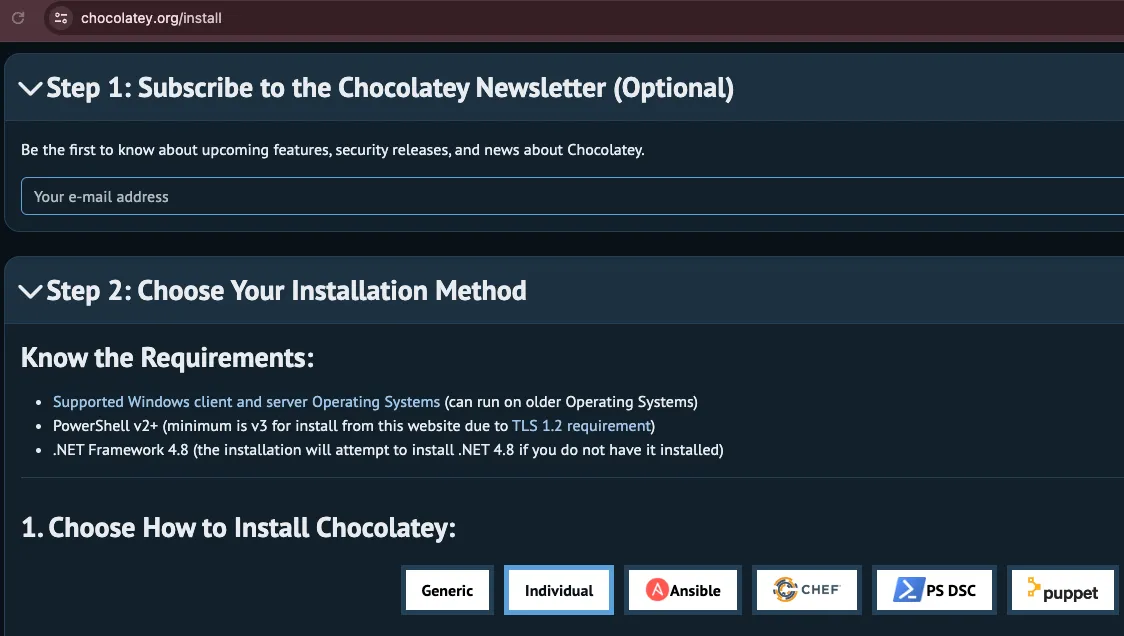
- Assurez-vous que vous utilisez powershell.exe en tant qu’administrateur
- Exécutez la commande suivante et attendez à ce que l’exécution se termine:
Set-ExecutionPolicy Bypass -Scope Process -Force; [System.Net.ServicePointManager]::SecurityProtocol = [System.Net.ServicePointManager]::SecurityProtocol -bor 3072; iex ((New-Object System.Net.WebClient).DownloadString('https://community.chocolatey.org/install.ps1'))- Installez le package Terraform avec la commande suivante:
choco install terraformNOTE: Chocolatey et le package Terraform ne sont PAS directement maintenus par HashiCorp. La dernière version de Terraform est toujours disponible par installation manuelle.
Vérification de l’installation
Section intitulée « Vérification de l’installation »Valable pour tous les cas sus-décris
- Ouvrez un nouveau terminal et listez les sous-commandes disponibles.
terraform --versionTerraform v1.7.5on darwin_arm64
Your version of Terraform is out of date! The latest versionis 1.9.5. You can update by downloading fromhttps://www.terraform.io/downloads.html
Dépannage : Si vous obtenez une erreur indiquant que Terraform est introuvable, cela signifie que votre variable d’environnement PATH n’a pas été configurée correctement. Veuillez revenir en arrière et assurez-vous que votre variable PATH contient le répertoire dans lequel Terraform a été installé.
- Ajoutez n’importe quelle sous-commande à terraform -help pour en savoir plus sur ce qu’elle fait et les options disponibles.
terraform -helpUsage: terraform [global options] <subcommand> [args]
The available commands for execution are listed below.The primary workflow commands are given first, followed byless common or more advanced commands.
Main commands:  init          Prepare your working directory for other commands  validate      Check whether the configuration is valid  plan          Show changes required by the current configuration  apply         Create or update infrastructure  destroy       Destroy previously-created infrastructure
All other commands:  console       Try Terraform expressions at an interactive command prompt  fmt           Reformat your configuration in the standard style  force-unlock  Release a stuck lock on the current workspace  get           Install or upgrade remote Terraform modules  graph         Generate a Graphviz graph of the steps in an operation  import        Associate existing infrastructure with a Terraform resource  login         Obtain and save credentials for a remote host  logout        Remove locally-stored credentials for a remote host  metadata      Metadata related commands  output        Show output values from your root module  providers     Show the providers required for this configuration  refresh       Update the state to match remote systems  show          Show the current state or a saved plan  state         Advanced state management  taint         Mark a resource instance as not fully functional  test          Execute integration tests for Terraform modules  untaint       Remove the 'tainted' state from a resource instance  version       Show the current Terraform version  workspace     Workspace management
Global options (use these before the subcommand, if any):  -chdir=DIR    Switch to a different working directory before executing the                given subcommand.  -help         Show this help output, or the help for a specified subcommand.  -version      An alias for the "version" subcommand.